Competitor Price Tracking for Ecommerce
Give Actionbook the product pages you want to watch. The first check sets your baseline. Later checks show price and availability changes, alongside your own price where you pair a product.
Built for
- Store owners watching competitor products
- Merchandising teams keeping a watchlist
- Marketers checking promotions and shipping offers
Key insights
- Price changes on the same product variant
- The gap to your own price
- Sold-out and back-in-stock labels
- Promotions and free-shipping thresholds per store
- Dated sources, with unread pages listed apart
What is the competitor price tracking report?
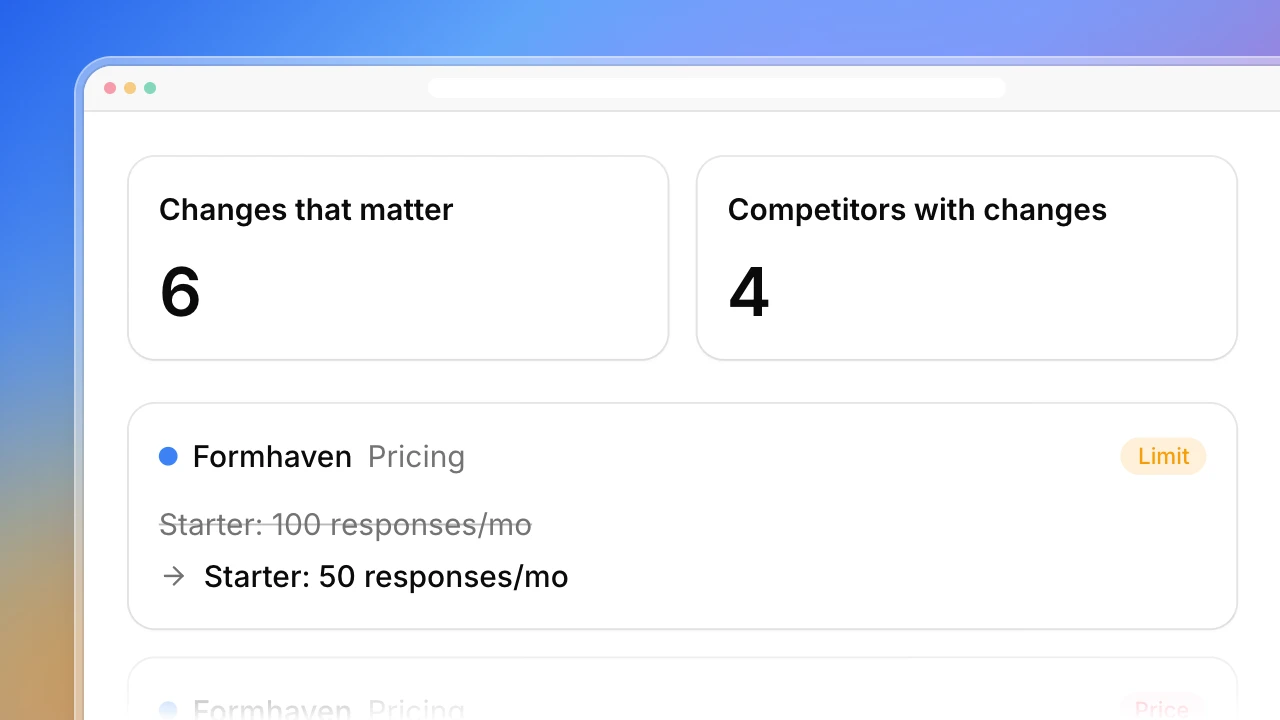
Competitor price tracking compares the same product’s listed price across dated checks. Actionbook reads the product pages you choose in your browser and reports price changes, sold-out and back-in-stock labels, promotions and free-shipping thresholds, next to your own price where you pair a product. Each comparison keeps the store, variant, market and currency fixed. Products seen for the first time and pages that could not be read are listed apart from confirmed changes.
How to track competitor prices
Start with a short list of products you can check again. The useful comparison is the same item under the same conditions, one check later.
1. Choose the products and market
Pick competitor product URLs or one collection. Write down the size, color, currency and shipping region, because variants and regional prices differ.
2. Keep a dated observation
Record the page price and stock label with the URL and time. Keep the crossed-out compare-at price, coupons and free-shipping thresholds in their own fields.
3. Compare, then decide
Match the next check to that snapshot. Look at price changes and stock labels next to your own price and the offer terms before changing anything. Recheck pages that failed to load.
Who the competitor price tracking report is for
Ecommerce founders
You watch a few stores that sell to the same shoppers and check their prices by hand.
- Which changes put a competitor below your price
- Sold-out and back-in-stock products
- A dated record instead of memory
Merchandising and marketing teams
You bring product-level evidence to a weekly assortment or campaign review.
- The same variants compared across checks
- Promotions and free-shipping thresholds per store
- Unread pages handed back for another check
How the competitor price tracking report works
Step 1: Click Build with Actionbook and list the products
Paste competitor product URLs or a collection, and say which variant, market and currency to check. Add your own product next to any you want compared.
Step 2: Actionbook reads each page in your browser
It records the listed price, stock label, promotion and free-shipping threshold with the URL and time. Pages it could not read and variants that don’t match are listed apart.
Step 3: Keep the snapshot for next time
You get the report and a dated CSV. Provide that file on the next check and the report shows what changed since. The first check sets the baseline.
Competitor price tracking report FAQ
Can I use this competitor price tracker without a previous snapshot?
Yes. The first check records current prices, stock labels and offers as your baseline. Changes appear from the second check on. A store’s crossed-out price is not used as the earlier price.
Does it remember the previous check?
Each check saves a dated CSV. Provide the latest one next time and Actionbook compares against it. Without it you get current observations and a new baseline.
How are products matched?
By the same store, product URL and variant, in the same market and currency. If a URL now opens a different size or color, the record is listed for another check instead of compared. Your own products are paired only where you say so.
Does the price include coupons, shipping and tax?
No. It is the listed product price. Compare-at prices, coupon conditions and free-shipping thresholds are shown separately, and nothing is added up into a checkout total.
Does sold out show how much stock a competitor had?
No. It is the label on the product page at the time of the check, not a stock count or a sales figure. A page that fails to load is listed as unknown, not as sold out or removed.
How is this different from competitor pricing analysis or website change monitoring?
This report follows individual ecommerce products and variants over time. The competitor pricing analysis playbook compares software plans, credits and seats. The website change report covers homepages, pricing pages and changelogs.
Will it change my prices or send alerts?
No. It is read-only and runs when you ask. It doesn’t change your store’s prices or send alerts. Run it again with your latest snapshot for the next comparison.