LinkedIn Viral Posts Finder
Give Actionbook a topic. It searches LinkedIn in your browser for the posts that took off on it in the last 90 days, sorts them by the angle they took and links every post, so you see what your audience responds to before you write.

Built for
- Founders choosing what to post about on LinkedIn
- Ghostwriters planning posts in a client’s field
- Content marketers backing their LinkedIn ideas with data
Key insights
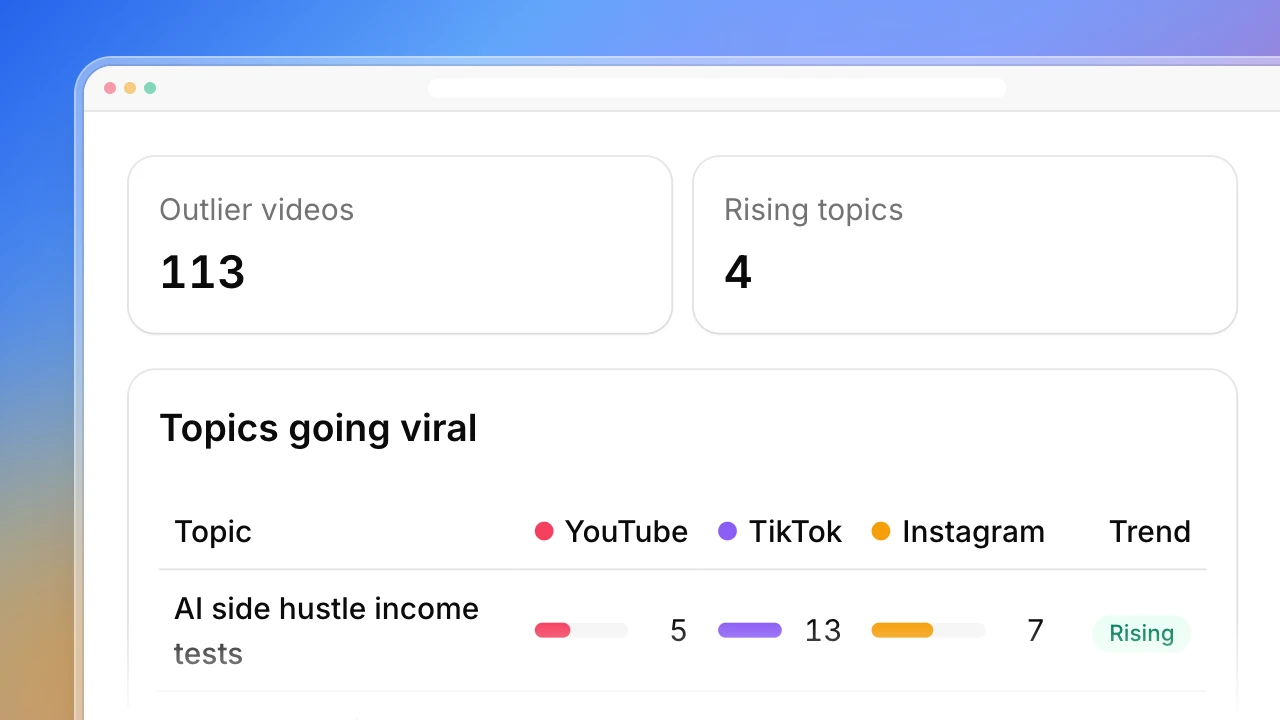
- The angles posts took on your topic and how each performed
- Posts that beat the topic’s typical post, with reactions and comments
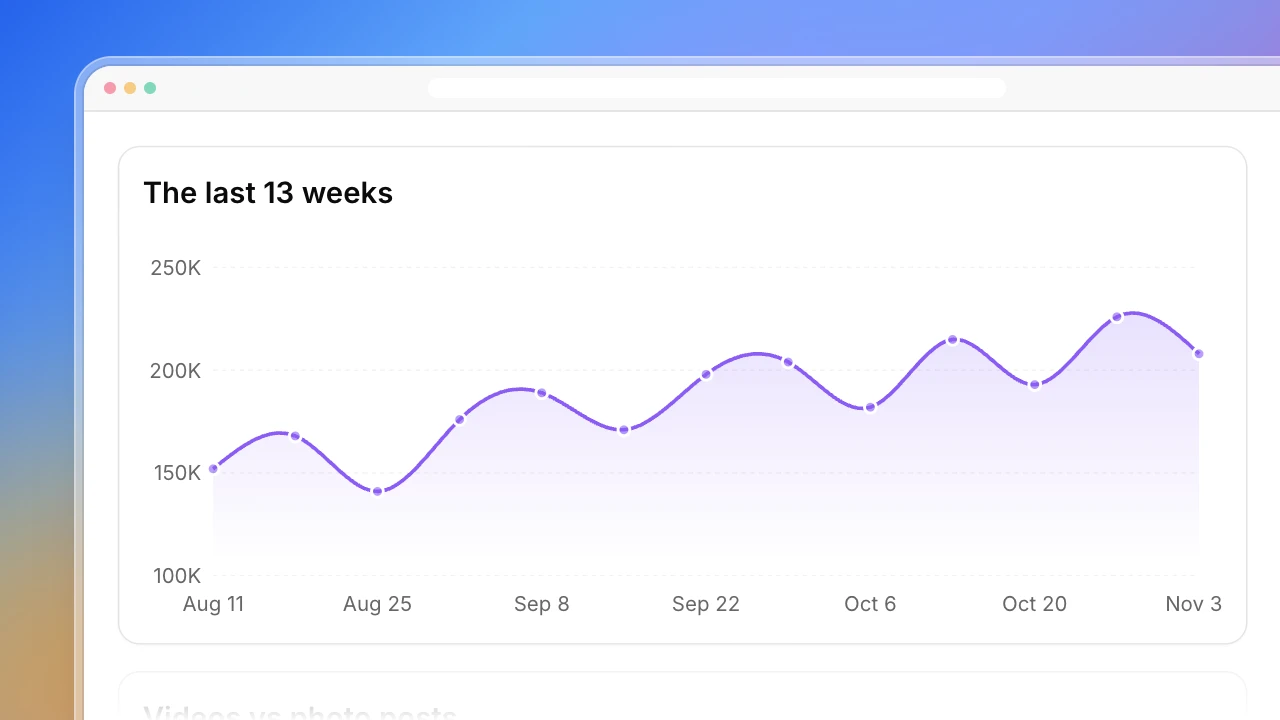
- How many posts appeared on the topic each week
- Every post with author, date, angle and a link, ready to filter
What is the LinkedIn viral posts finder?
LinkedIn viral posts are the posts on a topic that drew far more reactions and comments than the usual post on it. Finding them shows which angles a professional audience responds to right now. Actionbook searches LinkedIn for your topic in your browser, keeps public posts from the last 90 days, checks each one is really about the topic and removes duplicates. For every post it records the author, a short summary, the angle, the date, reactions, comments and the post link. The dashboard groups the posts by angle, such as a personal story, a contrarian take or a how-to, and shows which angles beat the topic’s typical post. It works as a source of LinkedIn content ideas taken from the top LinkedIn posts in your field, not from a generic list. You can ask for a longer window in the prompt.
How to find viral LinkedIn posts on a topic
Finding viral LinkedIn posts on a topic takes five steps. The dashboard above follows them.
1. Search the topic and filter to posts
Use LinkedIn search with the Posts filter and a date range. Try two or three wordings of the topic, since authors phrase it differently.
2. Keep only posts about the topic
A keyword match isn’t enough. Drop posts that only mention the word, and note why each was dropped.
3. Measure against the topic’s typical post
Take the median reactions across all posts you kept. A viral post is one that beats it by several times, not one with a big round number.
4. Label each post’s angle
Personal story, contrarian take, how-to, data or a list. The angle is what you can reuse; the wording isn’t.
5. Keep the link to every post
Save the post link, not the author’s profile, so you can go back and read the comments.
Who the LinkedIn viral posts finder is for
Founders and B2B creators
You post on LinkedIn to build your name and want topics that land.
- Angles that work on your topic now
- The posts that beat the typical post
- A link to read each one
Ghostwriters
You plan posts for clients in fields you don’t post in yourself.
- What took off in a client’s field
- Angles grouped and counted
- Examples to show the client
Content marketers
You plan a company’s LinkedIn calendar and need evidence for each idea.
- Angles ranked by reactions
- Recent posts only
- Rows you can filter
How the LinkedIn viral posts finder works
Step 1: Click Build with Actionbook and type your topic
A topic or a few keywords, the language and the period. The last 90 days by default.
Step 2: Stay signed in to LinkedIn
Actionbook searches LinkedIn in your browser. It only reads: it doesn’t like, comment or post.
Step 3: Read the angles, then the posts
Start with the angle that beats the typical post by the most, and open its top posts.
LinkedIn viral posts finder FAQ
What are LinkedIn viral posts?
Posts that drew far more reactions and comments than the usual post on the same topic. Here a post counts as viral when it beats the topic’s median by 3 times or more, so a niche topic has viral posts too.
How do I get LinkedIn content ideas from this?
Look at the angle, not the wording. If personal stories about your topic beat every other angle, that is the idea to write in your own words.
Where do the top LinkedIn posts come from?
From LinkedIn’s own post search for your keywords, filtered to the period you set. It reads only public posts.
Does it show LinkedIn trending topics?
It shows how many posts appeared on your topic each week, so you can see whether it is rising. It doesn’t list what is trending across all of LinkedIn.
Why is a post marked as missing a link?
Some search results don’t expose the post link. Those are marked as missing; the author’s profile is never used in its place.
How is this different from the LinkedIn Competitor Analysis?
This one starts from a topic and looks across many authors. The competitor analysis starts from one profile and looks at everything that person posted.
Does it update by itself?
Run it again to get a new list. The second run checks which posts are new before adding them.