
Until now, asking about part of a dashboard meant taking a screenshot and explaining which number you meant. With dashboard comments, you leave the question right on that part, so Actionbook knows exactly where to look.
Summary
- Dashboard comments let you ask about or change any part of a dashboard Actionbook built for you, right where you see it.
- There are three ways to leave a comment: select text or a number, click any spot on the page or type in the box at the bottom. You can send several at once.
- When a comment asks for a change, Actionbook works out what you want and edits the dashboard to match.
- When a comment asks a question, Actionbook reads it and answers from the data behind the dashboard.
What you can do with dashboard comments
As you finish a Google & Meta Ads Performance dashboard in Actionbook for the week of Mar 23 to 29, you want to dig into three things.
Before comments, each question was a round trip. You took a screenshot, pasted it into the chat and explained which campaign, row or chart you meant. Then you waited for the answer and did it all again for the next question. Three questions meant three screenshots and three rounds of explaining.
That hurt the answers too. A screenshot only shows part of the page, and a description in words is easy to misread, so Actionbook could end up looking at the wrong number. Every round also used credits, and a wrong guess meant another round to fix it.
With comments, you ask each question on the spot it is about and send them together. Actionbook knows exactly where each one points, so it doesn't have to guess. Your questions and changes go through faster and use fewer credits.
Pin a comment on the $284 CPA for the Search · Competitors campaign and ask why it is marked Cut. Actionbook opens the campaign in Google Ads and checks its search terms and bids. Then it writes the reason on the campaign row.
Select "invoice template word" in the search terms table, where $274 brought no conversions. Ask which other terms spent money without converting in the last four weeks. The answer comes back as a new table under that row.
Type "Split Google CPA by device" in the box at the bottom. Actionbook adds the breakdown as a new section and leaves the rest of the dashboard as it was.
That is three questions in one round, with no screenshots and no explaining which part you meant. Actionbook reads them together and collects what it needs in one pass. The answers land on the dashboard next to what you asked about, so you never have to match a reply in the chat to a chart on the page.
How dashboard comments work
Step 1: Leave your comments
There are three ways to leave a comment, and you can mix them in one round.
Select any text on the page, like a number on a card or a cell in a table, and an Ask Actionbook button shows up next to it. Click it to comment on what you selected.
To comment on something that isn't text, like a bar in a chart, click the comment icon at the top right of the page. Then click anywhere to pin a numbered comment on that spot. Press Esc when you're done.
For a request about the whole dashboard, type it in the box at the bottom of the page.
Click a pin to edit or delete it before you send. If Actionbook needs something that isn't on the page, attach a file or paste a screenshot.
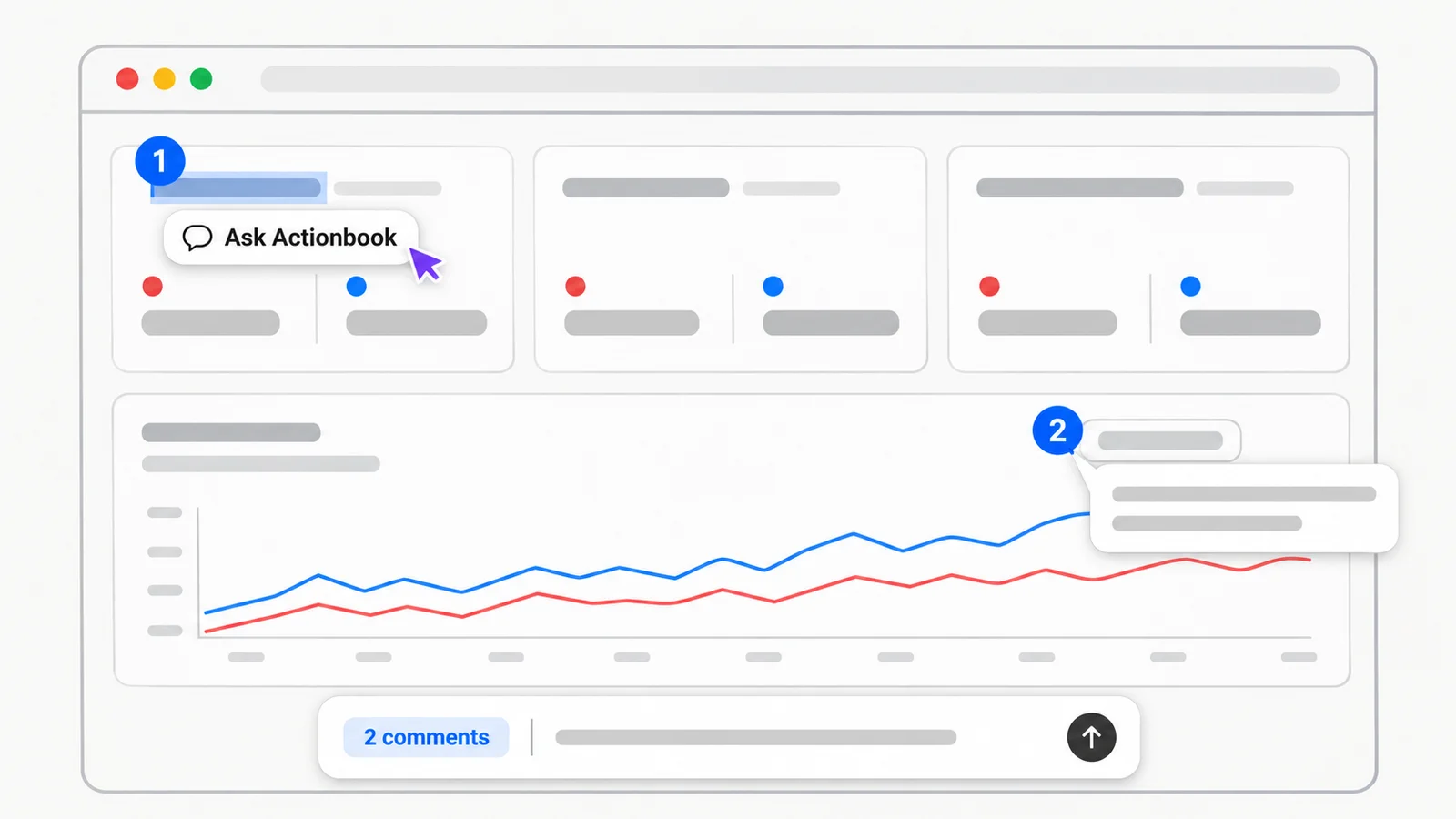
Step 2: Actionbook works through them in the same task
Sending opens your Actionbook chat. The comments arrive as one message in the task that built the dashboard, with a picture of where each one sits. Actionbook already has the data and the steps from the first build, so it picks up from there instead of starting over.
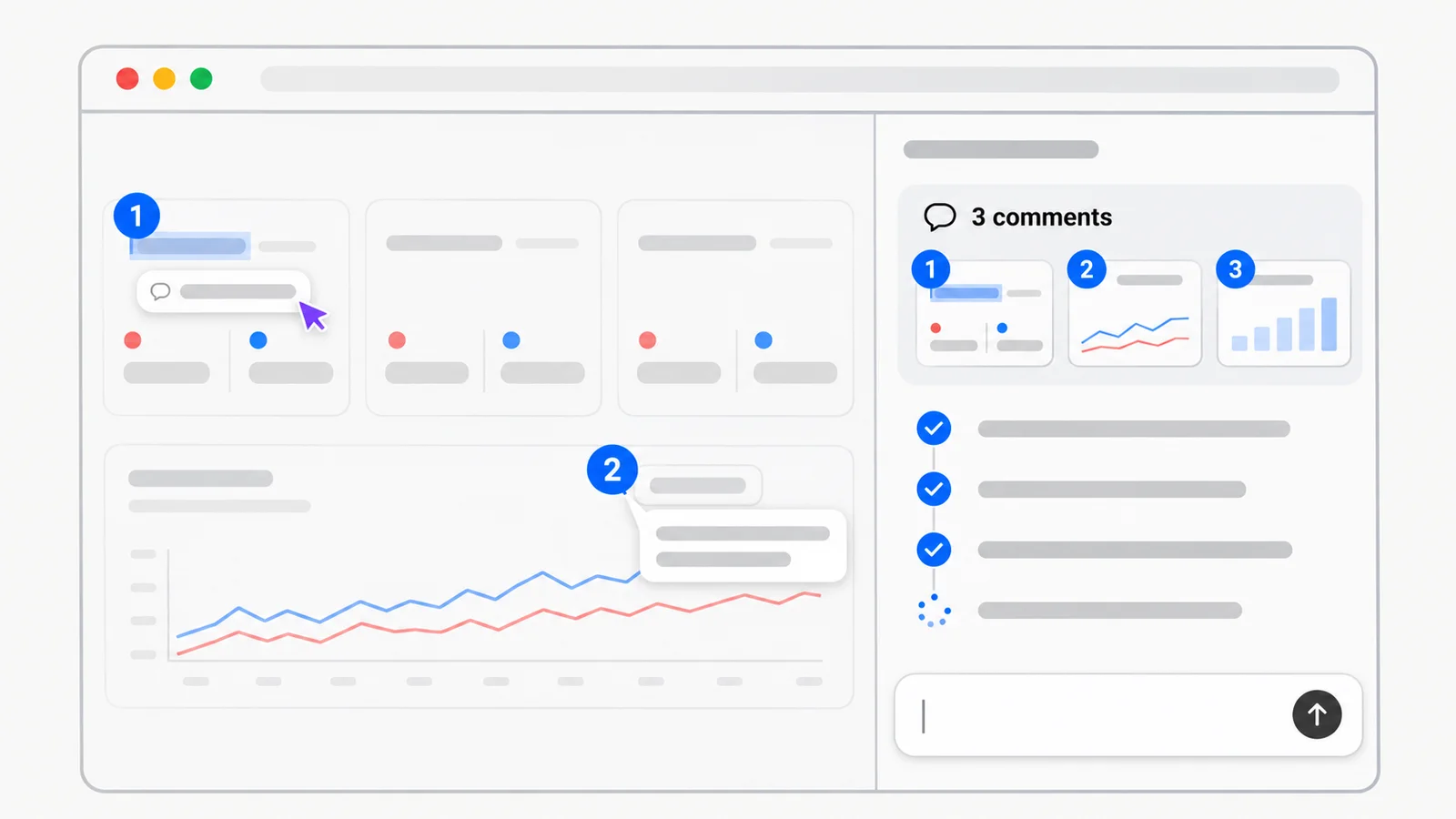
Step 3: Reload the page
When the new version is ready, a Dashboard updated notice appears on the page. Reload to see the changes.
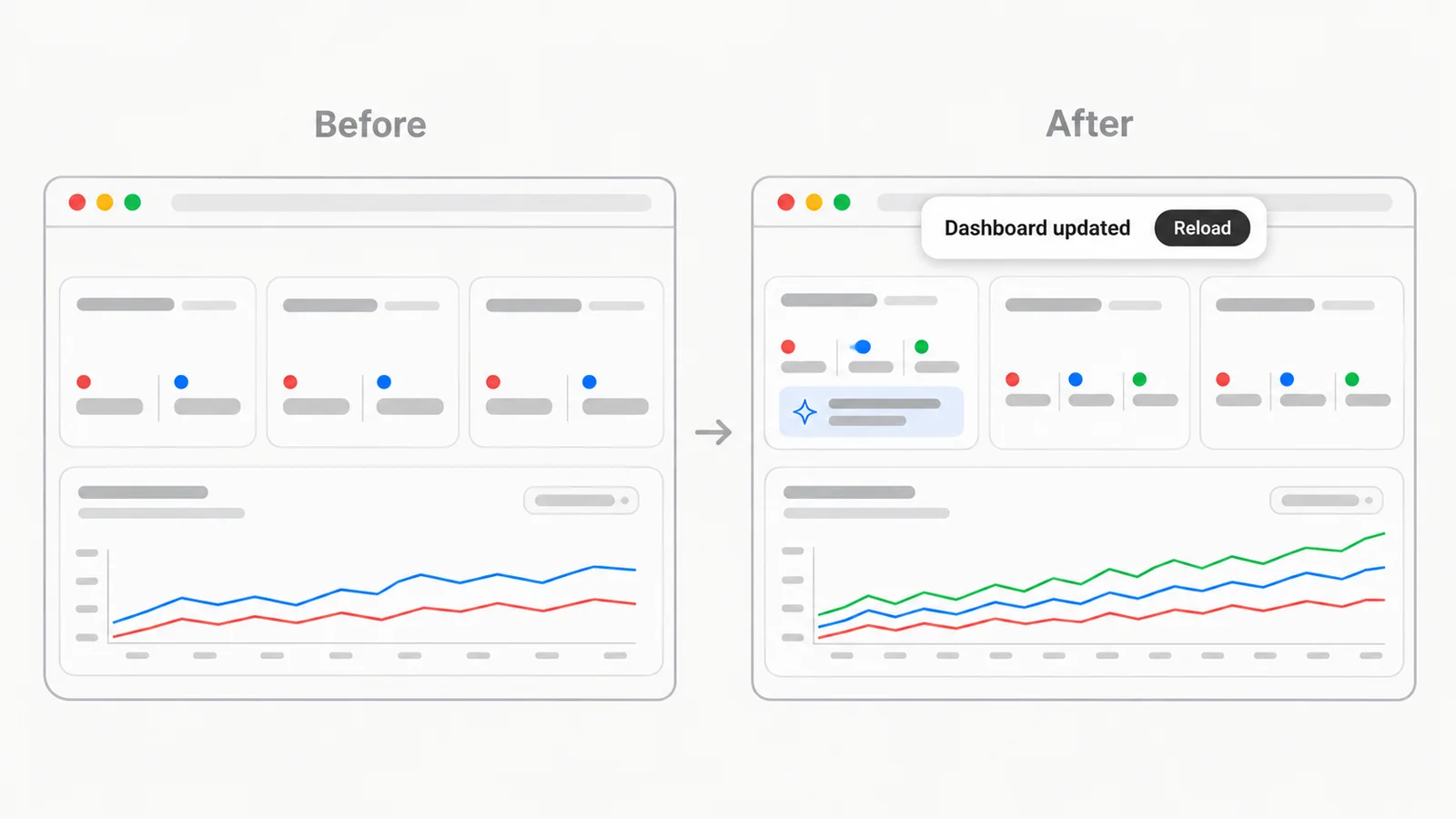
Comments or chat
You can still ask for changes in the chat, and both end up in the same task. The difference is how much you have to explain.
In the chat, you describe the place in words: the second card, the chart under the summary, the row with the highest spend. On a dashboard with a dozen cards and three tables, that description is easy to get wrong, and a screenshot only shows what fit on your screen.
A comment carries its own location. Actionbook gets the text you selected or the spot you pinned, the section around it and a picture of that part of the page. So you can write "why is this low?" and leave it at that.
Use the chat for requests about the dashboard as a whole, like a new data source or a different layout. Use comments when the question starts with something you see on the page.
Why comments make a better AI dashboard
Most AI dashboard tools use AI once, to build the page. After that you have a regular dashboard. You can read the charts and click the filters, but when a new question comes up, you go back to a chat, describe what you saw and wait for a new version.
With comments, you ask on the dashboard. Each question points at the exact number or chart it's about, so the answer is more likely to be right the first time. Actionbook picks up from the task that built the dashboard, so it doesn't collect the data again from scratch. The answer or change shows up where you asked, and the dashboard gets more useful each time you use it.